Authorizing Access to Data
According to the federal Family Educational Rights and Privacy Act (FERPA), students in higher education institutions are considered to be adults with exclusive rights over their student records. Students are the only ones who can authorize the release of information from their student records, including their financial records.
Third Party View
Granted by the student, to enable a third party access to the student's financial records, academic records and billing reminders.
- Third parties are often family members of the students. Please note that without third party access to a student's account, no information can be disclosed to anyone but the student. This includes parents calling regarding the student's billing account.
- The student at any time can modify access privileges.
Enrolling a Third Party
Continuing Students
Due to a recent update to the Bruin Financial Aid Portal, all existing third party authorizations must be updated to restore or continue a third party's access. Once completed, access is granted in real time.
To update third party access:
Sign into the Bruin Financial Aid Portal.
- Click your User Profile Name in the upper-right corner of the portal.
- Select Profile from the drop-down menu.
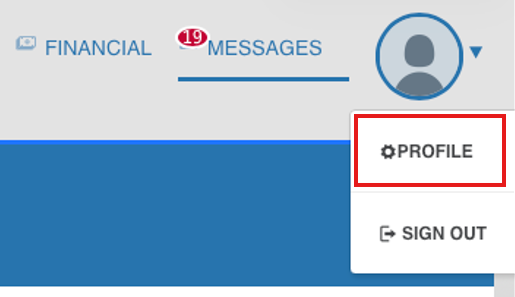
Click Manage Guest Access.
- Select Add Guest Access, or update an existing guest if applicable.
- In the Add/Edit Guest Portal Access window:
- Enter the guest's email address (must match what is listed via MyUCLA).
- Select the appropriate Guest Role
- UCLA Spouse/Other 3rd Party
- UCLA Parent 3rd Party
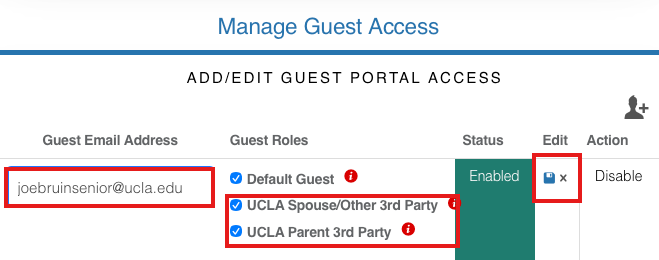
Verify the Status is set to Enabled.
- Click the Save icon to apply your changes.
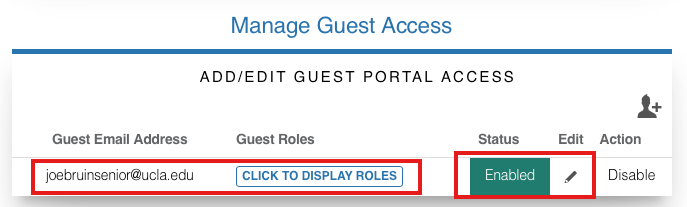
Once saved, the third party will immediately be able to access the Bruin Financial Aid Portal based on the permissions you have granted.
New Admits
Students who wish to grant a parent or other third party access to the Bruin Financial Aid Portal must complete the following steps:
The third party (i.e. parent) must FIRST:
- Visit the following site and click on the link to create a UCLA Logon ID
- Accept the terms of creating a UCLA Logon ID
- Create a username and password
- Provide the student with their new UCLA username and password so the student can assign access to their third party
The student will then need to:
- Login to MyUCLA
- Click on "Settings" on the top right corner next to their name
- A drop down menu will appear and they will need to select "Third Party Access"
- Click on "Add New Account" and build a profile for their third party user by entering in the third party's username, first and last name and relationship to the student
- Assign access for the third party, selecting the level of access the student wishes to grant the third party
- Sign into the Bruin Financial Aid Portal.
- Click their User Profile Name in the upper-right corner of the portal.
- Select Profile from the drop-down menu.
- Click Manage Guest Access.
- Select Add Guest Access
- In the Add/Edit Guest Portal Access window:
- Enter the guest's email address (must match what is listed via MyUCLA).
- Select the appropriate Guest Role:
- UCLA Spouse/Other 3rd Party
- UCLA Parent 3rd Party
- Verify the Status is set to Enabled.
- Click the Save icon to apply your changes.
Note: Changes to third-party access take effect in real time. No additional processing time is required once the access has been saved.